Showing posts with label touchscreen. Show all posts

Friday, November 2, 2012

8 gotta-know tips for Windows 8 newbies

Made the leap to the drastically revamped Windows 8? Feeling a little lost? You’re not the only one.
Read on for eight tips that’ll help you find your bearings, from how to make sense of the new “Start” screen to where you’ll find the old-school Windows desktop.
Note: Most of these tips are intended for mouse-and-keyboard Windows 8 PC users, as opposed to Windows 8 on a tablet.

1. Meet the Lock screen and the Start screen

One of the first things you’ll see after firing up Windows 8 is the new “Lock” screen: a big, bold swath of wallpaper with a digital clock and a few other icons in bottom-right corner.
OK, so … now what?
Just click (or tap, if you have a touchscreen PC) anywhere on your display, and the wallpaper will slide up to reveal the new login screen. (Yep, get ready for a lot of new stuff.)
Enter your password, just like you did before in earlier versions of Windows, press the Enter key …
Windows 8 Start screen 300x205 8 gotta know tips for Windows 8 newbies
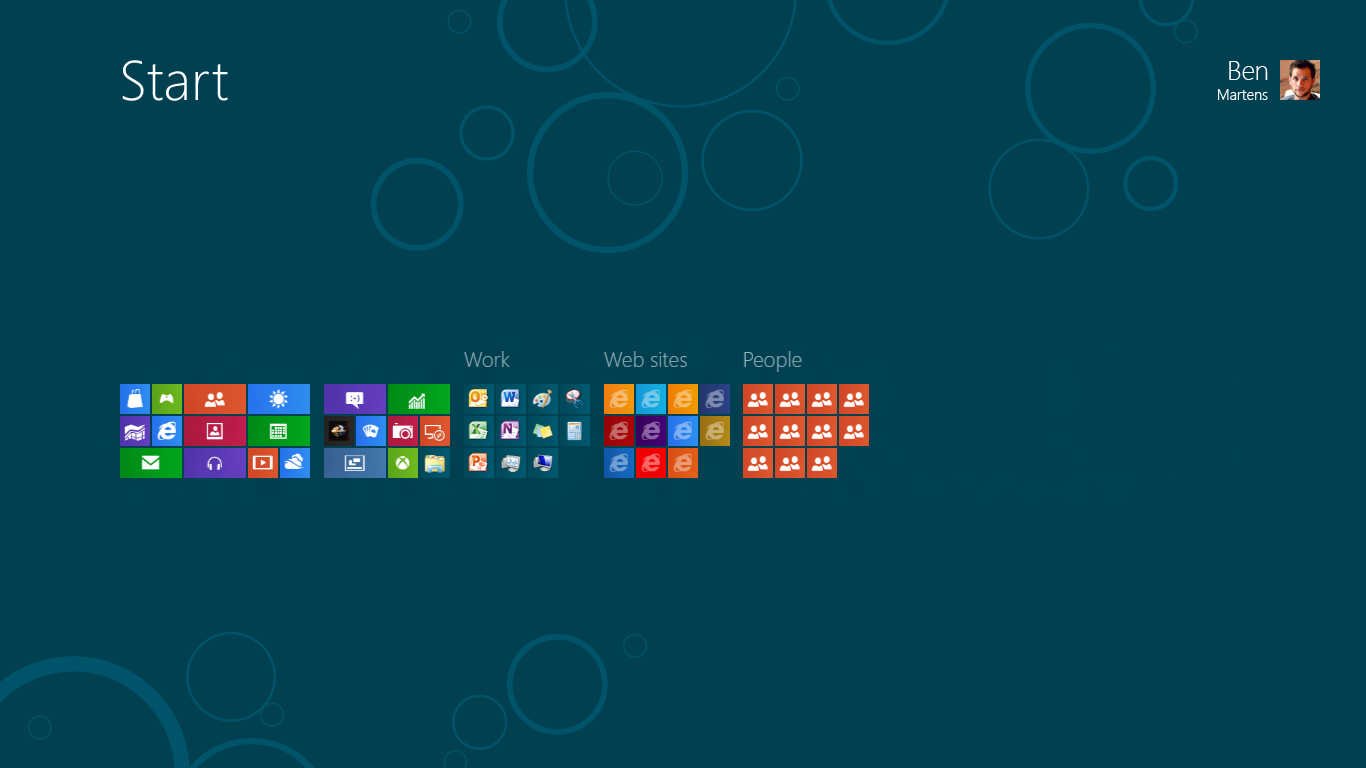
Meet the Windows Start screen, the nerve center for all your apps.
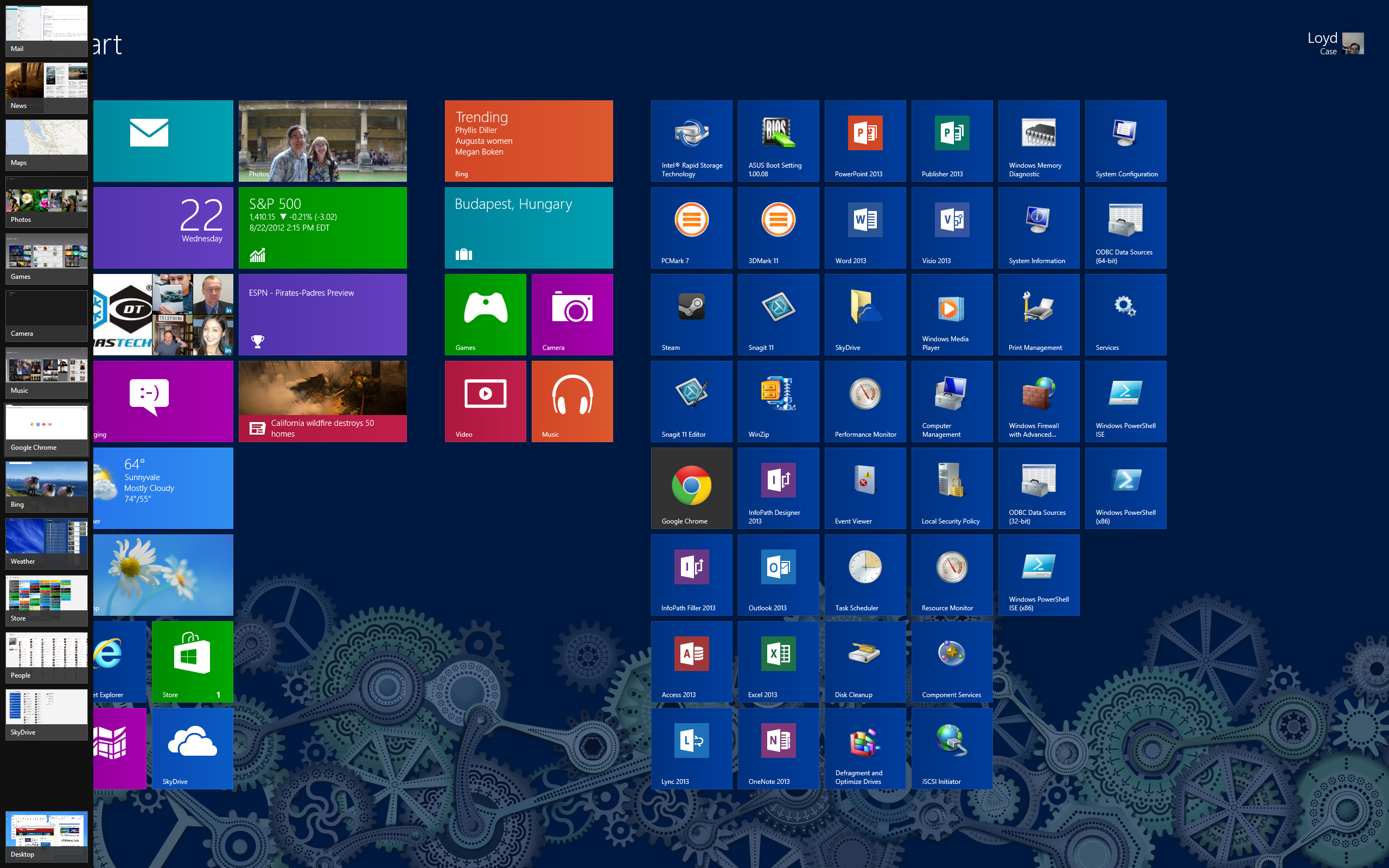
…and, whoosh! Welcome to the Start screen, an eye-popping and potentially bewildering array of multicolored tiles, some festooned with sliding panels of pictures, headlines and trivia.
These tiles are actually all apps—specifically, touch-friendly Windows 8 apps, although you may also see some tiles representing your old, “legacy” Windows programs.
Go ahead and click one of the new apps. When you do, it’ll twirl around and fill the screen with, say, a gorgeously formatted series of news headlines, or a summary of the weather courtesy of Bing (Microsoft’s search engine).
All in all, quite slick.
But, um … how do you get back to the Start screen? Isn’t there a “back” arrow or something?
Well, as it turns out …

2. The corners of the screen are your new best friends

Here’s the thing when it comes to finding your way around Windows 8: when in doubt, scroll your mouse over to a corner of the screen.
Windows 8 right side screen icons 300x272 8 gotta know tips for Windows 8 newbies
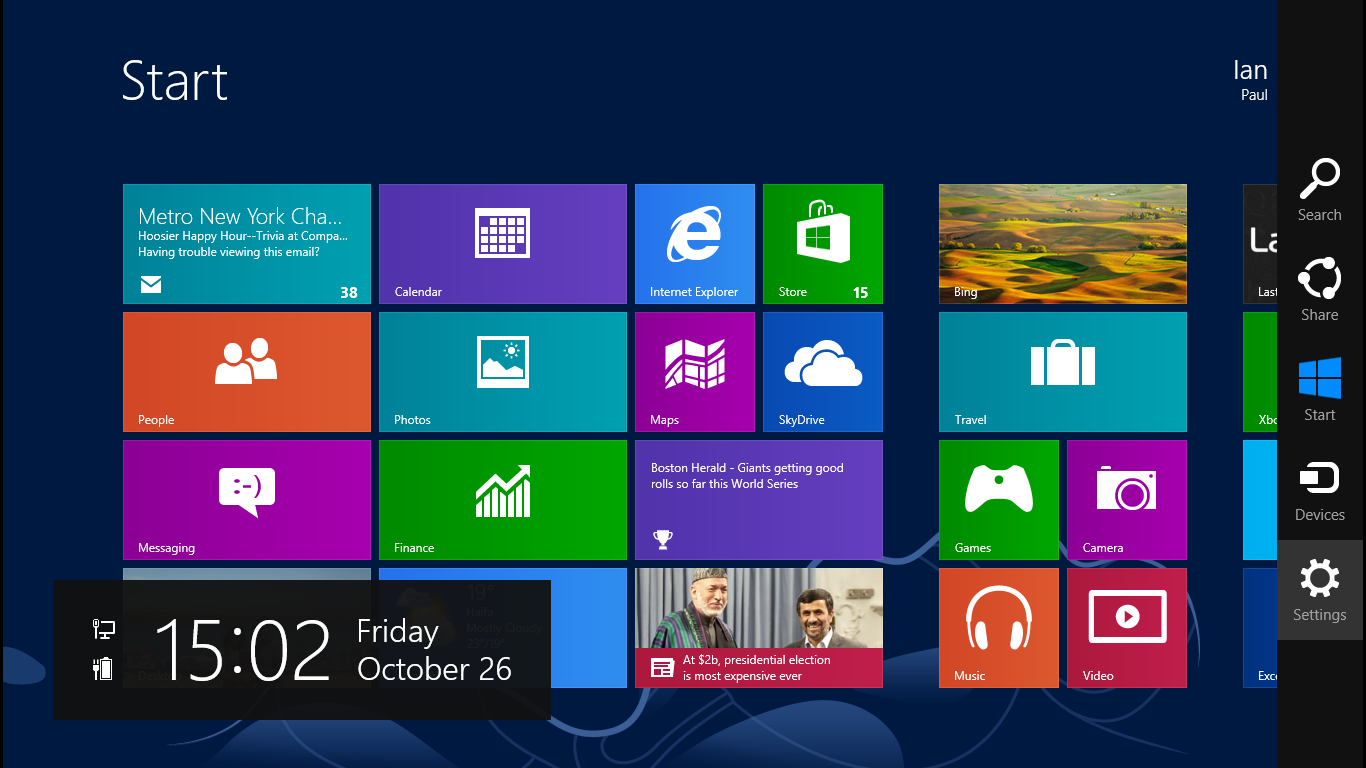
Want to search, tweak your settings, or get back to the Start menu? Just mouse over to the top- or bottom-right corner of the screen.
Head for top- or bottom-right corners, and a long, narrow panel will slide out from the side of the screen. complete with icons for:
  • Search, for searching your programs, files, or PC settings;
  • Share, for sharing links or other content with your contacts;
  • Start, which takes you back to the Start screen;
  • Devices, which manages additional monitors, input devices, or other hardware plugged into your PC;
  • and Settings, for managing the settings of a given app, checking your network or sound settings, or shutting off, putting to sleep, or otherwise powering down your system.
Scroll your mouse to the top-left corner of the screen, and a thumbnail of the previous app you had open will pop up; click it, and you’ll jump back to that app. You can also scroll down a little more to reveal a column of all your currently running apps.
Last but not least, move your mouse to the bottom-left corner of the screen, and a Start thumbnail will open. Click, and you’ll find yourself back at the Start screen.
Phew.

3. You can move your Start tiles and resize them

So, we’re back at the Start screen with all those crazy tiles. Want to rearrange them? Just click and hold, then drag.
Windows 8 resize Start tiles 300x210 8 gotta know tips for Windows 8 newbies
Right-click an app to resize it, “unpin” it from the Start screen, and more. (The options vary depending on the app you select.)
You can also right-click a tile to make it bigger or smaller (in the case of made-for-Windows-8 apps), “pin” (add) or “unpin” (remove) a tile to the Start screen, or uninstall it altogether.
Last but not least, you can “pin” your favorite old Windows apps (like Chrome, Firefox, Paint, or even Windows—er, File Explorer) to the Start screen, too. (How, you ask? See tip #5 below.)

4. Go back to your old Windows desktop

Missing the familiar Windows desktop? Just click the Desktop tile from the Start screen, and presto: there it is, complete with all your old program icons, the taskbar, the Recycle bin, and even the notification tray in the bottom-right corner of the screen.
But wait … where’s the Start menu?
Nope, your eyes aren’t playing tricks on you. Among the many, many big changes in Windows 8, the familiar Start menu is gone for good.
So, how do you get a big list of all your programs now, or open the old Windows Control Panel? Well, it’s time to …

5. Meet the “All apps” button

Go back to the Start screen (scroll to the bottom-left corner of the screen and click the Start thumbnail), right-click on the Start wallpaper, then click the “All apps” button that appears in the bottom corner of the screen.
Windows 8 All Apps 300x187 8 gotta know tips for Windows 8 newbies
Right-click the Start screen and click All Apps to get a list of all your Windows programs, just like you could on the old Start menu.
You should now see a big list of all your programs, just like you used to get in the (gone, but not forgotten) Start menu.
Scroll all the way to the right, and you’ll see a heading marked “Windows System”; here, you’ll find an icon for the Control Panel, along with File Explorer (the new name for Windows Explorer) and the Task Manager.
If you’re using the old Windows desktop, a quicker way to get to the “All apps” list is to scroll to the top- or bottom-right corner of the screen and click the Search icon. Not only will you get the Apps list, you’ll also be able to search for any app, setting, or file on your PC.
Bonus tip: Want to “pin” an old Windows app you found in the All Apps screen to the Start screen? Right-click it, then click the “Pin to Start” button at the bottom of the screen.

6. Sync your email, contacts, calendars and more

Want your latest email messages, events, Facebook and Twitter pals to appear in the “live” tiles on the Start screen?
All you have to do is add some accounts to the Mail, Calendar, and People apps that were built specifically for Windows 8.
Windows 8 add account to People app 300x290 8 gotta know tips for Windows 8 newbies
You can add accounts to the various core Windows 8 apps by mousing to the top- or bottom-right corner of the screen, then clicking the Settings icon when it appears.
The process is more or less the same for each app, so I’ll just give you the rundown on adding a new account to the People app:
  • First, click the People tile from the Start screen.
  • Scroll to the top- or bottom-right corner of the screen, then click the Settings icon once it slides into view.
  • Click “Accounts” under the main Settings heading.
  • Choose an account to add; in the case of the People app, your choices include Hotmail, Outlook, Linkedin, Google, Facebook, and Twitter. Pick once, then enter your login information.
That’s it! Within a second or two, you should see your contacts and pals flowing into the People app.

7. Sign in to your system with your Microsoft account

Now, you may notice in the course of adding accounts to your various WIndows 8 apps that you’re asked—repeatedly—to enter the password for your Microsoft account.
What’s a Microsoft account? It’s the umbrella account that lets you sign in to such Microsoft services as Xbox Live, Hotmail, Outlook.com, and SkyDrive. (If you don’t already have a Microsoft account, you can sign up for one here.)
Anyway, if you’re getting sick of Windows 8 asking for your Microsoft password over and over again, you can make it stop by linking your Windows 8 user account with your Microsoft account.
Once you sign in to your Windows 8 system with your Microsoft ID, you won’t be asked for your Microsoft password again, and you’ll also be able to sync your wallpaper, Start background, desktop themes, and other settings whenever you sign in to another Windows 8 PC.
Here’s how to do it:
  • Scroll to the top- or bottom-right corner of the screen, then click the Settings icon.
  • Click “Change PC Settings” near the bottom of the screen. (You’ll need to click that link whenever you want to tweak a system-wide Windows 8 setting, by the way.)
  • In the left column of the “PC settings” page that appears, click Users.
  • Near the top of the screen, under the Your Account heading, click the “Switch to a Microsoft account” button, then enter your Microsoft username and password.
Windows 8 store 300x187 8 gotta know tips for Windows 8 newbies
Want more apps? Just head to the Microsoft app store.

8. Get more apps

Apple has its App Store, Google has its Play store for Android phones and tablets, and now Microsoft has its own app store for Windows 8 apps.
You can shop for new apps by clicking the Store tile from the Start screen. About 10,000 apps are available, from ABC News and Angry Birds Space to Netflix, Skype, and Urbanspoon. (Still missing in action: Facebook and Twitter.)
See an app you want? Click its tile, click the Install button, and Windows 8 will handle the rest.
Having second thoughts about an app you installed? Find it in the Start screen, right-click its tile, then click the Uninstall button.

http://heresthethingblog.com/2012/11/02/8-gotta-tips-windows-8-newbies/

Wednesday, October 31, 2012

8 things you need to know about Windows 8

by ben patterson on October 31, 2012
in desktops | how-tos | tablets
Windows 8 Start screen 8 things you need to know about Windows 8If you haven’t seen or tried the new version of Windows yet, prepare to be dazzled—as well as very, very confused.
Available now for download and coming pre-installed on new PCs, laptops and touchscreen tablets, Windows 8 represents a top-to-bottom reinvention of Windows.
Instead of your familiar desktop, the first thing you’ll see in Windows is the “Start” screen, a constantly updating, multicolored patchwork of “live” tiles that display your email, calendar, photos, local weather, Facebook updates, breaking news, you name it.
You’ll also find dozens of eye-popping, full-screen apps that look like they belong on a tablet rather than a PC. In fact, these new made-for-Windows-8 apps have been designed for touchscreen tablets and PCs (including Microsoft’s new “Surface” tablets), but you can also use them—somewhat awkwardly—with a traditional mouse and keyboard.
All very impressive, but what if you just want to open your favorite Windows programs—or, you know, use your PC the way you always have? In that case, get ready for a big adjustment, plus lots of “Now what do I do?” moments.
Here’s a few things you need to know about Windows 8, starting with…

1. It’s available now

Windows 8 tablets and PCs 300x198 8 things you need to know about Windows 8 Windows 8 runs on touch-enabled PCs and tablets, as well as on traditional mouse-and-keyboard desktops that lack touchscreens.
Windows 8 made its official debut on Friday, October 26 and there are three different versions, only one of which you can buy now:
  • Windows 8: the standard version of the new Windows works on both desktop PCs and (pricey) Intel-powered tablets, and it boasts the new, touch-friendly Start screen, all the core Windows 8 apps (like Mail, Calendar, Messaging, Photos, and Internet Explorer 10), Microsoft’s new suite of security software, and the ability to run older Windows programs. You’ll be able to buy a stand-alone version of Windows 8 early next year; for now, though, it’s only available on brand-new PCs and tablets.
  • Windows 8 Pro: A more robust version of Windows 8 with beefier, business-oriented security features, the ability to connect a remote Windows desktop, and support for corporate computer networks. If you have a PC with Windows 7, you can purchase and download a Windows 8 Pro upgrade right now; more on that in a moment.
  • Windows RT: A version of Windows designed for budget (as in $500 or less) tablets that boasts the same colorful “Start” screen and touchscreen apps as regular Windows 8, but lacks the ability to run older mouse-and-keyboard Windows programs. (What does “RT” stand for, you ask? “Runtime,” for what it’s worth.)

2. Windows 8 has a split personality

Part of the reason Windows 8 is so confusing to the uninitiated (myself included) is that it’s essentially two versions of Windows rolled into one.
Related: 8 gotta-know tips for Windows 8 newbies
First, you’ve got the new Windows—the one with colorful, touch-friendly tiles and apps (about 10,000 made-for-Windows-8 apps are already available) optimized for tablets and touchscreen PCs.
Then you’ve got the familiar, old-fashioned Windows, which you can access by clicking the Desktop tile on the Windows 8 “Start” screen—well, that is, unless you’re using a Windows RT-powered tablet, which lacks the “legacy” Windows desktop. (Confusing, I know.)
Now, the new Windows with its always-updating “live” tiles is feast for the eyes, and on a touch-enabled PC or tablet, you’ll want to reach out and touch it.
That said…

3. You can use Windows 8 without a touchscreen

All the nifty little tiles on the Windows 8 Start screen can be clicked with a mouse as well as tapped with a fingertip, and you can click and drag to swipe to the next screen.
In other words, don’t feel like you need to spring for a new touchscreen PC in order to use the latest version of Windows.

4. The “Start” menu is gone

Windows 8 missing Start menu 300x191 8 things you need to know about Windows 8 Here’s the “legacy” Windows desktop running on Windows 8. Notice anything missing?
Click the Desktop tile from the new Windows 8 Start screen, and you’ll see your familiar program icons, the taskbar, the clock, and notification tray, all right where you left them—everything except the Start menu.
In place of the Start menu is the aforementioned Start “screen,” your nerve center for all those flashy Windows 8 apps, as well as for any old Windows programs that you “pin” to the screen.
You can access the Start screen anytime by flicking your mouse to the bottom-right corner of the screen, and you can get a list of all your apps and programs by right-clicking on the Start screen and clicking the All Apps buttons.
Want to search, restart, hibernate or power off your system? Those functions used to live in the old Start menu, but now they sit in a hidden panel that slides out from the right side of the screen.

5. Most of your old Windows software will run on Windows 8

Microsoft has a free tool—the Windows 8 Upgrade Assistant—that’ll scan your system, then warn you if any of your old Windows programs won’t work under Windows 8.
Most of my Windows 7 programs seem to be running on Windows 8 without a hitch, although a couple of old utilities got nixed.
Windows 8 Upgrade Assistant 300x239 8 things you need to know about Windows 8 The Windows 8 Upgrade Assistant will warn you if any of your apps—or if your system itself—will have any trouble with the new Windows.
You can also search Microsoft’s Compatibility Center to see if Windows 8 will play nice with your favorite programs.

6. Any PC that runs Windows 7 should be able to run Windows 8

So says Microsoft, anyway.

Monday, October 29, 2012

Master Windows 8 gesture commands

Alex Wawro @awawro   Oct 29, 2012 3:00 AM


Windows 8 has a few new features (like the charms menu, the Start screen, and gesture commands) which may seem pointless or needlessly confusing at first blush. Experienced Windows users running a non-RT version of Windows 8 may be tempted to ignore these new features entirely in favor of working exclusively through the Desktop app.
That's a reasonable sentiment, and it's totally feasible because Windows 8 works equally well whether you stick exclusively to the new Windows 8 interface or the traditional Windows desktop. But Windows 8 really shines when you learn to use the charms and gestures to quickly swap back and forth between the Start screen and the desktop, multitasking and sharing data between new Windows 8 apps and your trusty desktop software.
Before you can do that, you need to get comfortable taking your hands off the keyboard. After a few weeks working and playing with Windows I'm starting to learn how the new control scheme, designed to work equally well on desktops, laptops and tablets, can help you work faster and more efficiently if you take a little time to learn and integrate it into your workflow. With that in mind I've put together a brief guide to helping you get more done in less time on your desktop or tablet by mastering Windows 8 touch controls and their keyboard/mouse equivalents.

Conjure Windows 8 charms to easily search and share

Get used to pulling the new charm menu in from the right, because you're going to be doing it an awful lot.
Swipe in from the right edge to bring up the Windows 8 charms menu, which lets you search, share, and change the settings of Windows 8 apps. There’s also a Start button to take you right back to the Start screen.
Keyboard: Hit the Windows + C keys together to bring up the charms bar.
Mouse: Move your mouse to the top or bottom right corners of your screen and leave it there for a moment to bring up the Charms menu.

Switch tasks quickly with the app sidebar

Windows 8 with sidebar
You can see what apps are currently running by swiping in from the left side of the screen.
Switch through open apps in Windows 8 by swiping your finger in from the left edge of the screen to bring up the last app you were using. If you want to pick and choose from a list of all apps currently open, simply swipe in from the left a bit and then back again to the edge.
Keyboard: Press the Windows + Tab keys together to switch through open apps.
Mouse: Move your mouse to the middle of the left edge, then click and drag to bring in the next app. To bring up a list of all running apps, just move your mouse to the top or bottom left corners of your screen and move it along the edge towards the center until your apps list appears.

Use two apps simultaneously

You can use two apps simultaneously in Windows 8, though you can't adjust the ratio of screen space between the two apps.
You can actually snap an open app into the right or left third of the screen by simply tapping and dragging it to the left or right edge of your screen until a thin vertical bar appears. You can do this from the top edge of an open app to make room for a second program, or drag an open app from the list along the left edge and snap it into the right or left edge of the screen.
Mouse: To snap an app to the right or left side of your screen, simply drag it to either edge (as though the mouse pointer were your finger) or just right-click on the app and select "Snap left" or "Snap right" from the context menu.
Keyboard: To snap an open app to the right side of your screen, press the Windows key + the period key. To snap it to the left, simply press the Windows key + Shift + the period key.

Close apps with a flick of the wrist

Click (or tap) and hold the top edge of an app to move it around the desktop, then drag it to the bottom of the screen to close it.
Close apps by dragging your finger down from the top of the screen until the app minimizes and begins to disappear into the bottom edge.
Mouse: Move your mouse to the top of the screen until the cursor morphs into a gnarled hand, then click and drag the app down until it begins to disappear into the bottom edge of the screen.
Keyboard: The classic ALT + F4 key combination still closes any open program; if you use it while no programs are open, it should trigger the Windows power management menu so you can shut down your PC.

Open your options menu with a swipe (or a right-click)

The options menu along the bottom edge is unique to every app.
Swipe your finger up from the bottom edge to bring up the options menu in any Windows 8 app.
Mouse: Simply right-click in the empty space of any Windows 8 app to bring up the options menu.
Keyboard: Hit the Windows key + Z to bring up the options menu.


Try out semantic zoom

Microsoft
Zoom out to quickly organize the data you store within an app, or even just to organize the apps themselves.
Pinch your fingers together to zoom out; zoom out far enough and you will eventually enter Semantic Zoom mode, which can be useful for moving files around or quickly creating groups of folders. It's sort of hard to explain, so the best thing to do is play around with semantic zoom yourself to see how it works.
Mouse: Hold down the CTRL key and use the scroll wheel on your mouse to scroll in and out of Windows 8 apps. Scroll out as far as you can to enter semantic zoom.
There are actually a few ways to move and organize your files in Windows 8. If you have a touchscreen handy, tap and hold an object in Windows 8 (like the live tiles in the Start screen, for example) to move it around and reorganize folders or menus. If you're using a mouse and keyboard you can move files and folders around in the Desktop app with the File Explorer utilty, just like every other version of Windows. If you need to shuffle things around in the Windows Start screen or a Windows 8 app, simply left-click on an object, then hold and drag it to reorganize your apps, files and folders. Use the mouse wheel to quickly scroll through lists while doing so.

http://www.pcworld.com/article/2013022/master-windows-8-gesture-commands.html#tk.nl_today